# Coach buttons

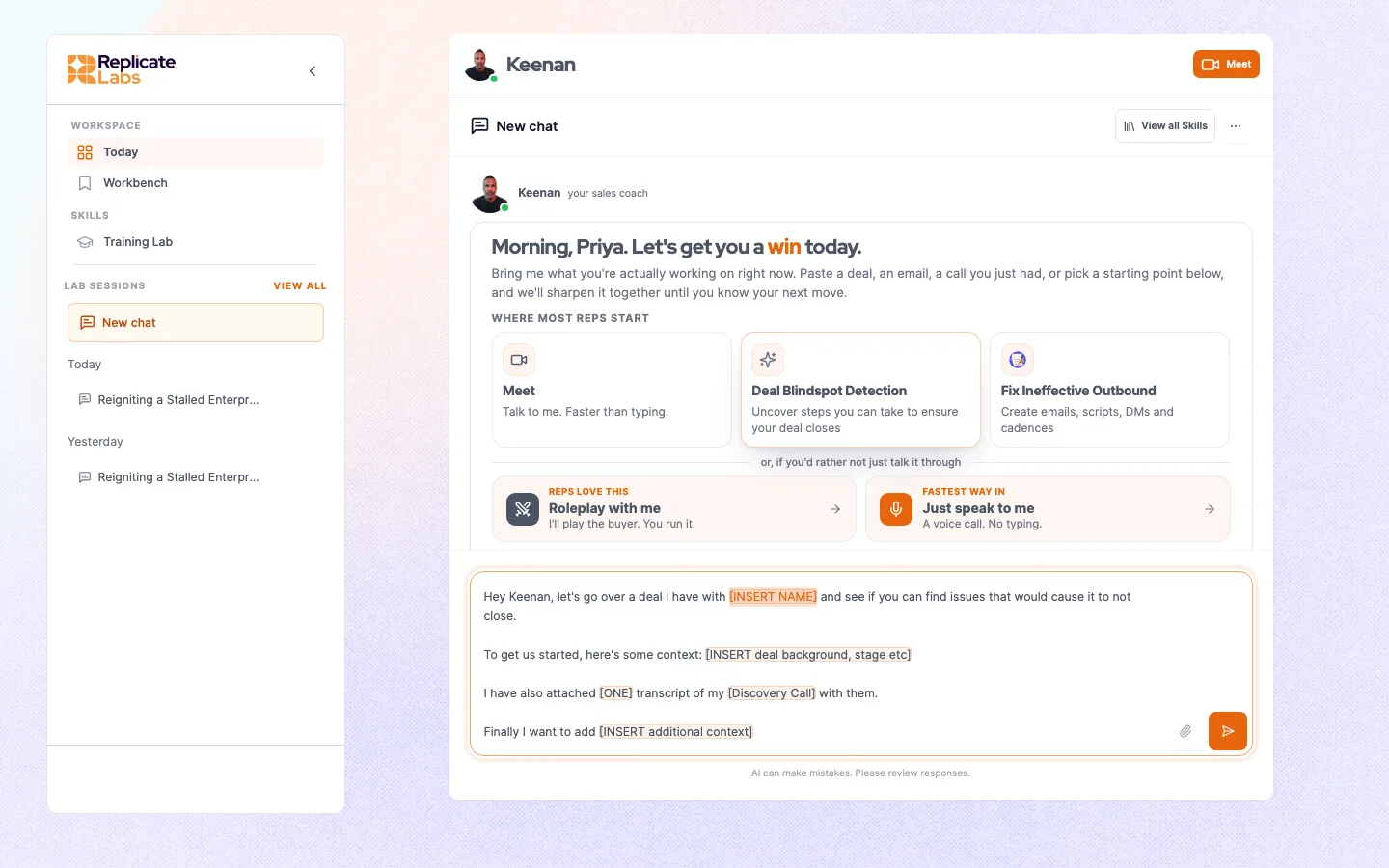
The row above the composer: what each button does, why one might do nothing when clicked, and how the set is decided.

Source: https://replicatelabs.ai/docs/coaching/coach-buttons
Last updated: 2026-09-03

---

Your coach's home has a row of buttons. Each is a prepared way in, so nobody has to start from a blank box.

They are also how an account steers the coach at the jobs that matter to that business. The set is configured per account, per coach, and per role, so it is not a fixed list and yours will not match anyone else's.

## What a button actually does

A button does exactly one of three things, and the difference matters when you are wondering why nothing happened.

<figure class="dfig">
<div class="dframe">
<div class="danat">
<div class="danat-row"><b>Opens a screen</b><span>Takes you somewhere in the app, most often straight into a call. These always work.</span></div>
<div class="danat-row"><b>Runs a skill</b><span>Invokes a repeatable job built for your account. It pre-fills the composer to invoke the skill rather than sending immediately, so you can add your specifics first. See <a href="/docs/coaching/skills">Skills</a>.</span></div>
<div class="danat-row"><b>Drops in text</b><span>Puts a prompt template into the composer with the placeholders selected for you. It does not send. Replace the placeholders with your real deal before you do.</span></div>
</div>
</div>
<figcaption><b>Three kinds of button.</b> Two of the three fill the composer rather than sending, which is deliberate.</figcaption>
</figure>

<div class="dnote warn">
<span class="dnote-h">A button that appears to do nothing</span>
<p>If a button that runs a skill is clicked and nothing happens, the usual cause is that the skill is not loaded for your user. It fails silently by design rather than throwing an error at a rep mid-session. It is not something you can fix from the rep surface: report it to your administrator, who can get it corrected. See <a href="/docs/reference/troubleshooting">Troubleshooting</a>.</p>
</div>

## Using one properly

1. Click the button that matches what you are doing.
2. The composer fills, usually with placeholders for the account, the stage, and what you want.
3. **Replace every placeholder.** A prompt sent with the placeholders still in it produces exactly the generic answer people then complain about.
4. Send, then talk to the coach normally. The button is a starting point, not a form.


<figure class="dshot">
<img src="/img/docs/rep-button-composer.webp" alt="A coach button having dropped a prompt template into the composer, with placeholders highlighted" width="1440" height="900" loading="lazy" />
<figcaption><b>A button that drops in text.</b> The template lands in the composer with its placeholders selected, and it does not send. Replace every placeholder with your real deal before you do.</figcaption>
</figure>

## Why the row changes

Three things decide which buttons you see.

- **The coach you are on.** Buttons belong to a coach. Switch coach and the row changes.
- **Your active role.** Rep, manager and admin surfaces each have their own row. A manager on the rep coach sees rep buttons.
- **Your account.** Some buttons are scoped to specific companies, and some appear only in particular states, for example only until you have had your first conversation.

## Getting one added

Buttons are part of coach configuration rather than something a customer administrator edits directly. If your team does the same job every week and there is no button for it, that is worth raising: it usually becomes either a button or a [skill](/docs/coaching/skills). See [Coach configuration](/docs/admin/coach-configuration).
