# Finding your way around

The surfaces you will actually use: the coach home, the composer, the call, the Training Lab and configuration.

Source: https://replicatelabs.ai/docs/getting-started/finding-your-way
Last updated: 2026-09-03

---

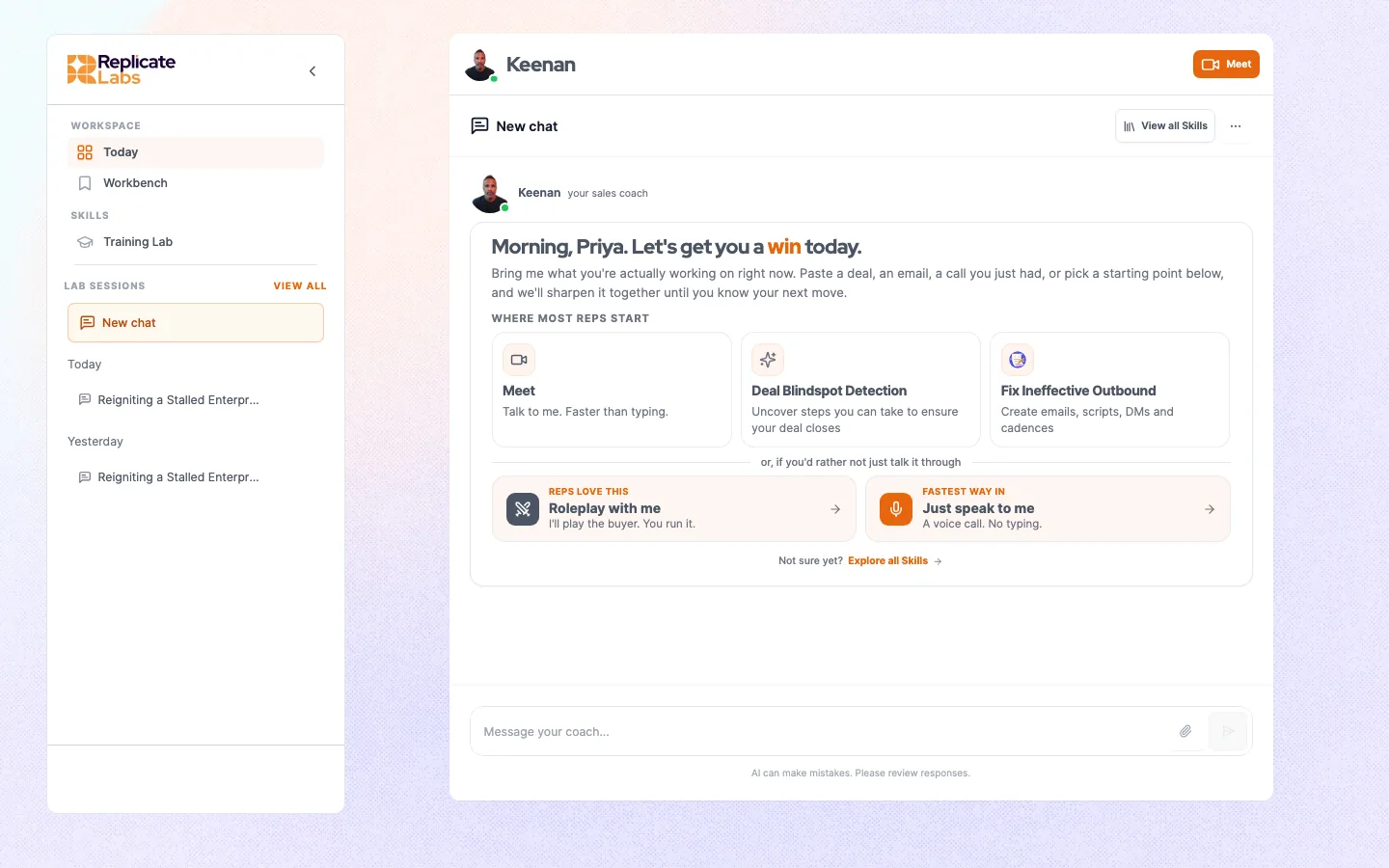
Your workspace is branded for your organisation, so colours, names and the coach's face will not match a screenshot from anywhere else. The structure underneath is the same.

## The coach home

Where you land. It holds three things worth knowing about.

<figure class="dshot">
<img src="/img/docs/rep-coach-home.webp" alt="The coach home: coach selector top left, session list in the sidebar, button row above the composer" width="1440" height="900" loading="lazy" />
<figcaption><b>The coach home.</b> The coach selector sits top left, past sessions in the sidebar, the button row above the composer. Your workspace carries your organisation’s branding, so the colours and the coach will not match this exactly.</figcaption>
</figure>


<figure class="dfig">
<div class="dframe">
<div class="danat">
<div class="danat-row"><b>Coach selector</b><span>Top left. Switches between the coaches your account runs. Your history stays with each coach, so switching does not lose a thread. The platform remembers your last selection, so if a screen looks wrong, check which coach you are on.</span></div>
<div class="danat-row"><b>Button row</b><span>Above the composer. Prepared ways in, specific to your account and your current role. See <a href="/docs/coaching/coach-buttons">Coach buttons</a>.</span></div>
<div class="danat-row"><b>Composer</b><span>The message box. Typing is one of two ways to work; the other is a call.</span></div>
</div>
</div>
<figcaption><b>The coach home.</b> The button row and the coach selector are the two controls people miss.</figcaption>
</figure>

## The call

The live spoken conversation. The coach appears on camera and you talk to it. This is the default way to bring a deal, not an advanced mode. See [Bring a deal to a call](/docs/coaching/bring-a-deal).

You will be asked for microphone access the first time. If the browser blocks it, nothing tells you loudly; the call simply never starts properly. See [Troubleshooting](/docs/reference/troubleshooting).

## The Training Lab

Where roleplays live. You pick a roleplay, pick the persona, and run a spoken conversation against a buyer. Afterwards you get a graded read.

What you see there is what is configured for the coach you are currently on, so if the list looks unfamiliar, check the coach selector before anything else.

## Configuration

Administrators get a configuration area covering users and teams, the knowledge base, personas, products, scorecards and roleplays. It is described through the [Administration](/docs/admin/users-teams-roles) section.

Some parts of a coach, its prompts, its button set and which skills it carries, are configured by your provider rather than in this area. See [Coach configuration](/docs/admin/coach-configuration).